Setting up Firebase
Setup and Create Firebase Project
We use Firebase Phone auth in this to verify Phone numbers, therefore you have to create a New Project on Firebase by going to Firebase Console then sign in using your google account if your'e not signed in, then create a new Project and set the name you like for the project, then:
- click on Add Firebase to your Android app
- copy the applicationId from your build.gradle and paste it as Android Package Name
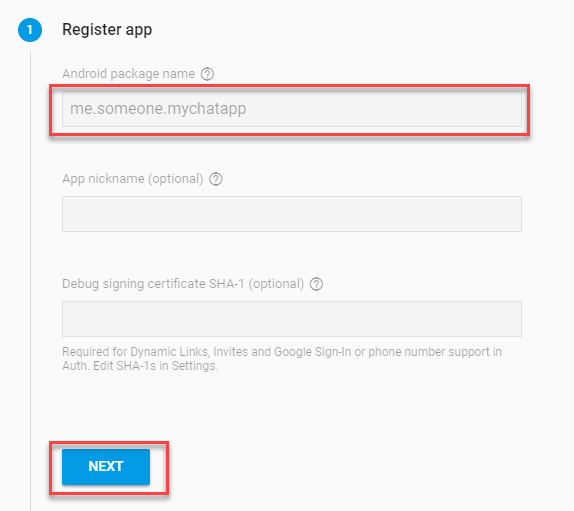
- Click on Register App > Next
- click on Download
google-services.json. it will download a.jsonfile we will use it later
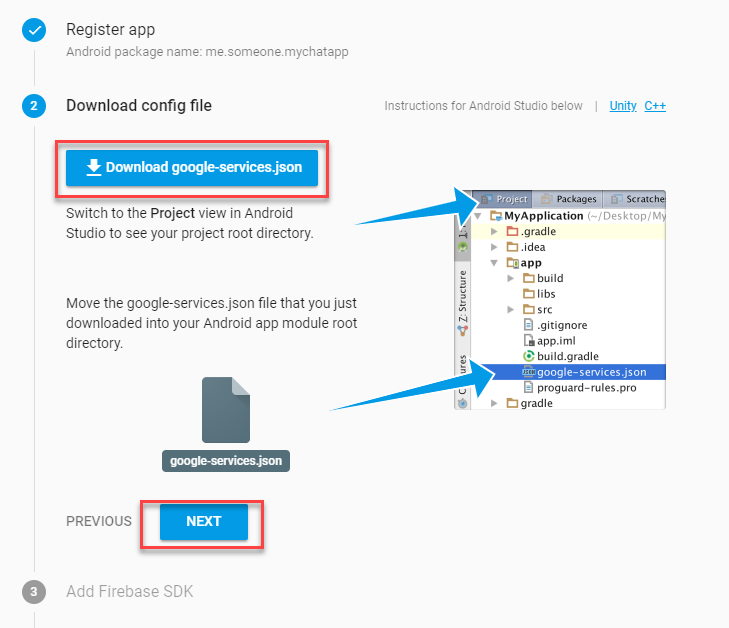
- you can skip the remaining setup steps
- next up copy the downloaded
google-services.jsonand paste it in the pathEqualChat - Android App\app\to make sure that your app is linked with your Firebase Project
Enable Phone Authentication
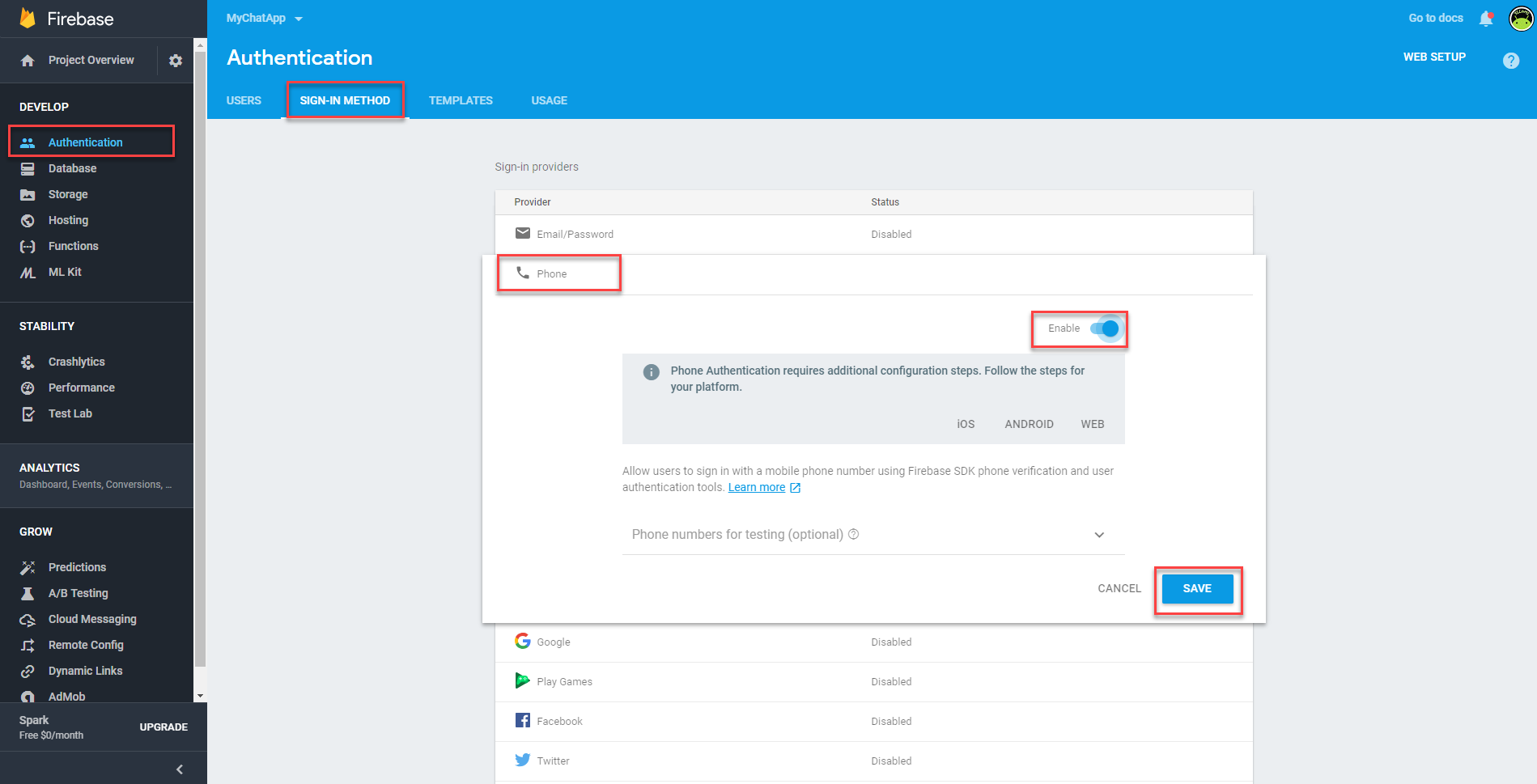
next up you have to Enable Phone Authentication in Firebase Console by going to :
- Authentication
- Sign-In Method
- click on Phone
- enable it then save
After that you have to Upgrade to Blaze Plan in Firebase Console by clicking at the bottom left.